
PromptSmart+
Belleau Technologies LLCVideo Players & Editors
4.3313.00 Reviews
- Version
- 4.0.3
- Installs
- 100.00K
- Age Rating
- Everyone
Screenshots
Our Review of PromptSmart+
 Analysis by Appyee
I judge a teleprompter by what happens when I stop reading exactly as planned: does it help me recover naturally, or make me fight the screen? PromptSmart+ is built around speech recognition, so its appeal is not simply having a script in view. It aims to keep the text moving with your spoken delivery, which can make recording a presentation feel less like operating equipment and more like talking to another person.
A dependable starting routine
For a first recording, I’d keep the workflow deliberately simple: prepare a script, open it in the app, set the text to a comfortable size, and practise a short section before filming anything important. The speech-following approach is most useful when the wording is close to what you actually plan to say. A script full of last-minute edits, stage directions, or phrases you would never use aloud can make any teleprompter feel awkward, even when its central idea is sound.
I also recommend writing for the ear rather than the page. Break long sentences into speakable thoughts, use contractions if that is how you talk, and leave yourself natural pauses. That makes it easier to glance at the next line without slipping into a flat reading voice. If you need to depart from the script, pause briefly, find your place, and resume with a complete thought instead of trying to race after the text.
Settings that affect the recording
Display adjustments are not just decoration. Font size and color influence how quickly you can pick up a line while keeping your attention near the camera, while scroll speed affects whether the script feels calm or rushed. I’d set these for the actual recording position, not just while holding the phone close: place the device where you intend to use it, read a few sentences at your normal speaking pace, and make small changes until the text is easy to follow.
Lighting and contrast matter too. A setting that looks comfortable indoors may be harder to read near a bright window or outside, so it is worth checking the screen in the room where you will record. Avoid turning the display into a dense wall of text; a slightly slower pace and readable lines are usually more helpful than squeezing a whole paragraph into view.
Where voice-following helps—and where it doesn’t
The distinctive advantage is that your delivery can set the pace. If you pause to breathe, emphasize a point, or recover from a small stumble, a voice-aware prompter can feel more forgiving than a fixed-speed scroll. It is especially handy for solo creators, teachers recording lessons, community organizers delivering announcements, and professionals who need to look prepared without memorizing every sentence.
There is a trade-off: recognition depends on the app hearing your speech clearly. Background conversation, room noise, or a very soft delivery can make following less reliable. I would test a representative passage in the intended location before recording a one-take message. In a noisy space, a quiet room or a conventional manually controlled prompter may be a better fit than relying on speech recognition to track every line.
Practice habits that save time
A useful routine is to rehearse only the opening and the transitions, rather than trying to memorize the entire script. The opening helps you settle into the lens; transitions are where readers most often sound as if they are searching for the next section. I’d also keep a separate copy of the script before editing it for spoken delivery, so a late wording change does not leave you unsure which version you are following.
For a short video, try one low-stakes test recording first. Listen for unnatural pacing, repeated filler words, and moments when your eyes visibly track across the screen. Then adjust the script or display rather than simply trying to speak faster. This small review loop can improve the finished take more than adding extra polish to the wording alone.
It is also wise to treat a teleprompter as a support, not a substitute for knowing your material. If you are answering questions, reacting to an audience, or speaking in a conversation where the wording must change on the fly, a prepared script may get in the way. A few bullet points—or no screen at all—can look more natural in those situations.
The app comes from Belleau Technologies LLC and sits in the video-player and editing space, though its practical role is closer to a recording aid than a full editing suite. It is free to install, has optional in-app purchases ranging from $1.99 to $59.99 per item, and is rated for Everyone. Its current version is 3.6.1, with Android support starting at version 9. It has a 4.5 average from around 2,000 ratings and more than 100,000 installs, which gives prospective users a sense of its established audience without telling you whether it suits your particular recording setup.
Getting Started with PromptSmart+
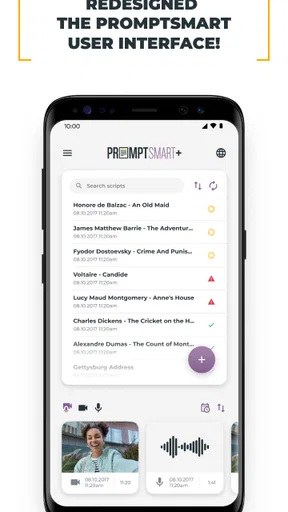
First things first, let's talk about how easy it is to get this app up and running. You can download PromptSmart+ from both the App Store and Google Play. Once you’ve installed it, you’ll be greeted with a clean and intuitive interface. The learning curve? Practically non-existent. Even if tech isn’t your forte, you’ll find your way around in no time.
Features That Stand Out
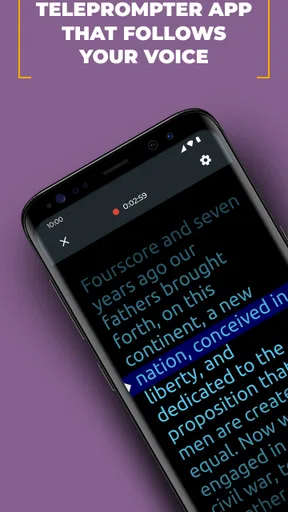
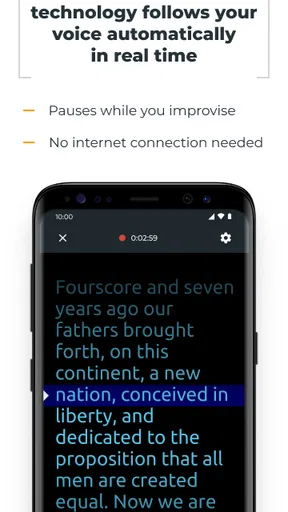
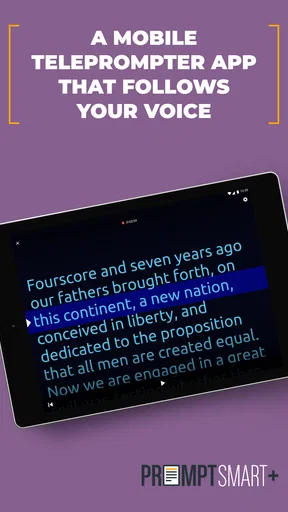
Now, onto the nitty-gritty—what makes this app special? The standout feature has to be its voice recognition technology. You load your script into the app, and as you speak, it follows along with you. No more awkward pauses or fumbling with a remote. It’s like magic, only better!
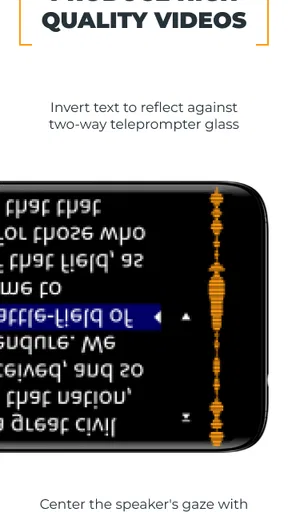
Another cool feature is the customizable display options. You can tweak the font size, color, and even the scroll speed to suit your style. Whether you’re recording in a dim room or outdoors, you can adjust the settings for optimal readability.
Using PromptSmart+ in Real Life
So how does this app fare in real-world scenarios? I tested it out during a recent virtual meeting, and it worked like a charm. The voice recognition was spot on, even with my occasional mumbling. It felt like having a cheat sheet that nobody could see. Plus, it kept me on track and made me look more professional.
If you’re someone who frequently gives presentations or records videos, this app is a lifesaver. It’s like having a teleprompter without the bulk or expense. And for those of us who get a little stage fright, PromptSmart+ provides that extra layer of confidence.
Behind the Scenes: User Experience
As much as I love the app, no review would be complete without a peek behind the curtain. The app is quite stable, and I didn’t experience any crashes. The support team seems responsive, although I didn’t need to contact them for any issues. The frequent updates also show the developers are invested in making it better, which is always reassuring.
However, there’s one small hiccup I noticed. The app works best in a quiet environment for optimal voice recognition. So, if you’re in a bustling area, you might have to speak a bit louder. But hey, nothing’s perfect, right?
Final Thoughts
In conclusion, PromptSmart+ is a must-have tool for anyone who regularly presents or speaks in public. Its ease of use, coupled with its innovative features, make it a standout choice in the sea of teleprompter apps. Whether you’re a seasoned speaker or a newbie, this app is like having a trusty sidekick by your side.
So, should you download it? Absolutely. It’s an investment in your communication skills, and who wouldn’t want to sound more polished and professional? Go ahead, give it a whirl, and let me know what you think!
A realistic recording day
Imagine recording a short update for your team before the day gets busy. You have a few points that must be accurate, but you do not want to sound as if you are reading a memo. I would write the opening and essential details as full lines, then keep the transitions brief. Before recording, I’d check that the phone is placed near the camera, make sure the screen is readable from that distance, and say the first few lines aloud. That quick setup helps reduce visible eye movement and reveals clumsy wording before it costs a full take.
If a delivery goes off-script, I would not treat that as a failure. Stop, take a breath, and restart from a clear sentence or section. Speech-following is most valuable when it accommodates a human speaking rhythm; it cannot make an unnatural script sound conversational by itself. For an announcement that must be delivered precisely, I’d do a quiet test first and keep the final take in a setting where surrounding voices are unlikely to compete with mine.
Choosing it over a basic prompter
Compared with a simple scrolling script, the main practical difference is who controls the pace. A fixed or manually advanced prompter can be predictable and may suit someone who prefers to rehearse a steady cadence or operate a remote. PromptSmart+ is more appealing when pauses and changes in speaking speed are normal parts of the delivery. That makes it a particularly sensible option for a presenter who wants to speak naturally while keeping the wording close at hand.
On the other hand, a basic notes app can be better for a casual talk built from prompts rather than sentences. It asks less of you and avoids the expectation that the screen will track your spoken words. If you are filming in a noisy location, or your style includes frequent improvisation, predictable manual scrolling may be easier to manage. I would choose based on the recording conditions and how closely I need to follow a script, not on the assumption that one method is always superior.
Small refinements for repeat users
Once the basic setup feels comfortable, make it repeatable. Keep a familiar text size and color for your usual recording environment, then change them only when the room or device position calls for it. Before each session, read a representative paragraph at the volume and pace you expect to use. This is a better test than silently scanning the script because it lets you notice whether recognition can follow your actual delivery.
Another useful habit is to mark your own script clearly before loading or using it: separate spoken words from notes to yourself, and remove reminders that could accidentally be read aloud. Keep sentences short enough to locate again after a pause. These are writing and preparation choices, not hidden app functions, but they make a speech-aware workflow less fragile and help the screen remain a cue rather than a distraction.
Who will get the most from it
I’d recommend it most to people who record recurring explainers, lessons, product walkthroughs, or internal updates and want to keep eye contact while staying accurate. It can also help someone who knows the material but gets distracted when trying to remember exact phrasing. For these users, the combination of a prepared script and speech-led pacing can take pressure off without requiring a bulky studio setup.
I would skip it for spontaneous interviews, audience Q&A, or conversational clips where the best response depends on listening and adapting. It is also not my first choice if the recording environment is consistently loud or if you prefer a tightly timed, mechanically predictable scroll. In those cases, cue cards, brief notes, or a manually controlled teleprompter can keep attention on the conversation and avoid depending on spoken-word tracking.
What to expect before installing
PromptSmart+ was released on February 12, 2018, and its listing includes 295 written reviews alongside its rating and install figures. Those signals suggest that it is not a brand-new experiment, but they cannot guarantee how well speech recognition will behave with your voice, room, or microphone position. The useful question is whether your normal recording conditions are quiet enough and your scripts structured enough for voice-led scrolling to help rather than interrupt you.
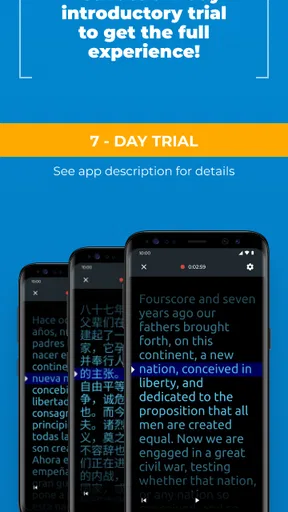
The app is free to start using, while optional purchases are listed from $1.99 to $59.99 per item. I would decide whether it fits your workflow before spending on anything: try a short, ordinary script, test the display where you actually film, and see whether following your speech feels natural. That small trial answers more than an abstract feature comparison because the central benefit depends on your own pace and setup.
When the script is not enough
A polished recording still depends on delivery. Keep your eyes near the lens, speak to one imagined listener rather than to a page, and use pauses intentionally. If you notice yourself staring at the text, shorten the lines or move the device closer to the camera rather than increasing the amount of wording on screen. A teleprompter can protect you from losing a key point, but it cannot replace vocal emphasis, a clear structure, or a genuine connection with the person watching.
My overall view is that this is a focused tool, not an all-purpose video app. I would choose it when an accurate script and natural pacing both matter, and choose simpler notes or manual scrolling when the delivery is improvised, noisy, or tightly timed. Used with a readable display and a script written for speech, it can make recording feel calmer and more repeatable; used without those basics, it may only put another screen between you and your audience.
Verdict
Strengths of PromptSmart+
- Real-time voice recognition is highly accurate.
- Customizable teleprompter settings.
- Cloud sync for script access anywhere.
- User-friendly interface for beginners.
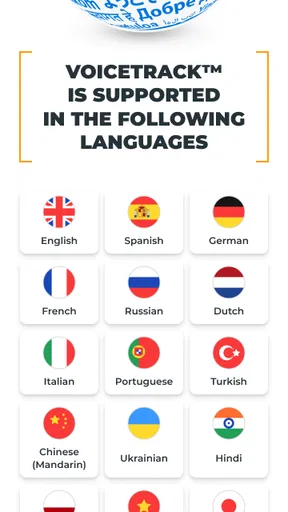
- Supports multiple languages seamlessly.
Limitations of PromptSmart+
- Limited free version features.
- Occasional lag on older devices.
- Subscription model can be expensive.
- No offline mode for script editing.
- Requires stable internet for cloud sync.
Similar Picks in This Category
View All
Google TV
Google LLC3.9

iTunes
Apple4.7

YouTube
Google LLC3.8

MX Player
Amazon Mobile LLC4.2

CapCut - Video Editor
Bytedance Pte. Ltd.3.5

PLAYit-All in One Video Player
PLAYIT TECHNOLOGY PTE. LTD.4.5
Frequently Asked Questions
What is PromptSmart+ and how does it work?
PromptSmart+ is a teleprompter app designed for both Android and iOS devices. It uses VoiceTrack™ technology to follow your speech and automatically scroll the script as you speak. This ensures a smooth and professional delivery without the need for manual adjustments, making it ideal for presentations, video recordings, and public speaking.
Is PromptSmart+ easy to set up and use for beginners?
Yes, PromptSmart+ is user-friendly and designed with beginners in mind. The app offers a simple interface where you can quickly upload or type your script. The VoiceTrack™ feature automatically adjusts the scrolling text to match your pace, making it accessible for users with no prior teleprompter experience.
What devices are compatible with PromptSmart+?
PromptSmart+ is available for both Android and iOS platforms. It is compatible with most smartphones and tablets running recent operating systems. For optimal performance, ensure your device is updated to the latest OS version and meets the app’s minimum technical requirements.
Does PromptSmart+ offer customization options for scripts?
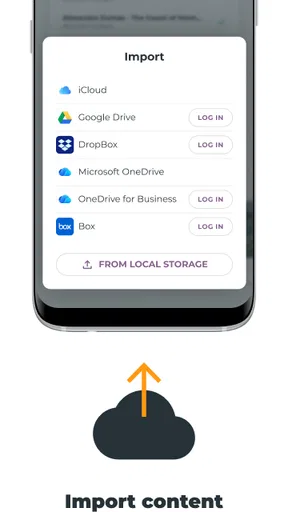
Yes, PromptSmart+ allows users to customize their scripts extensively. You can adjust text size, color, and background to suit your preferences and environment. Additionally, the app supports importing scripts from various formats, including PDF, Word, and Google Docs, providing flexibility and ease of use.
Are there any subscription fees or in-app purchases with PromptSmart+?
PromptSmart+ offers a free version with basic features and a premium subscription that unlocks additional functionalities such as cloud syncing, advanced VoiceTrack™ options, and more. The cost of the subscription varies, but it provides comprehensive tools for professionals looking to maximize their teleprompting experience.
